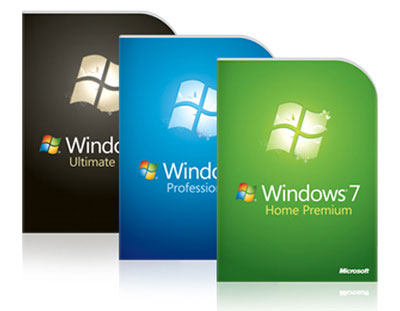
Windows 7 NL All In One 32bits(x86) & 64 bits
Part 1 : http://www.megaupload.com/?d=6B4TNP7G
Part 2 : http://www.megaupload.com/?d=540W50TA
Part 3 : http://www.megaupload.com/?d=032V6F2A
Part 4 : http://www.megaupload.com/?d=5PKTES3P
Windows 7 Activator

http://www.megaupload.com/?d=7ZMXZ92D
Windows Vista NL All In One 32 Bits\64 Bits
Microsoft Office 2010 Professional Plus 32x/64x (Nederlands)
ACTIVATOR : http://www.megaupload.com/?d=PMK8S5EJ


Office NL 64 bits : http://www.megaupload.com/?d=OY87X46Z
Office NL 32 bits : -
Microsoft Office 2007 Professsional Plus (Nederlands)

http://www.megaupload.com/?d=D630P3H0
Serial : KGFVY-7733B-8WCK9-KTG64-BC7D8
Microsoft Office 2007 Enterprise (Engels)

http://www.megaupload.com/?d=ODX8O8ZA
- Download QuickCam 8.4.8 with driver for WinXP.
- Install WinRAR if not already installed yet.
- Open the setup installer qc848enu.exe and unpack its contents to a folder. Alternatively, right click on qc848enu.exe and select “Extract to qc848enu\” option.
- Insert or plug in the Logitech QuickCam Messenger to a USB port if not already done so.
- An “Driver Software Installation” icon in systray (notification area) should appear, which will pop up detailed message if click. It should fail, and “Add Hardware Wizard” dialog window will appear. Choose to install the driver manually by instructing the Wizard to locate and look for the web cam driver inside the Drivers folder under the unpacked folder of the qc848enu.exe setup program. You can use browser button to select the folder.
- Windows Vista should grab the XP driver and install it properly.
- Download the latest version (10.5.1) of Vista compliant QuickCam software from Logitech to install the software on Vista.
- Run the setup (qc1051enu) normally. You may need to skip the detection of webcam near the end of installation process.
